Two Factor Authentication Backup Codes
During 2FA configuration
If you’re in the process of setting up 2FA, you can configure backup codes as part of the 2FA configuration process.
Once you’ve configured the primary method, you’ll be asked whether you want to set up backup codes.

Tick the Login with a backup code option and then click on CONFIGURE BACKUP 2FA METHOD. The plugin will then automatically generate backup codes for you.
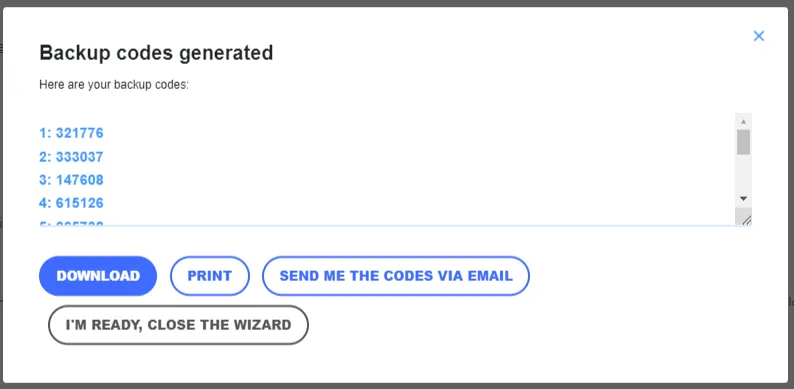
Once generated, you have a few options to save the codes:
- Copy and paste the codes to a safe and secure location, like an encrypted drive
- Download the codes as a text file to your computer by clicking the DOWNLOAD button
- Print the codes by clicking the PRINT button
- Receive the codes in your inbox by clicking this SEND ME THE CODES VIA EMAIL button
Confirm you have a copy of the codes and click the I’M READY, CLOSE THE WIZARD button to finish the process.
Geek note: Backup codes should be saved in a secure location such as an encrypted drive. Many password managers also offer secure vaults where you can store sensitive data. It is advisable to delete any copy of the backup codes stored in an unsecured location.
Post 2FA configuration
If you have already configured WordPress 2FA but didn’t configure backup codes, you can still do so from your WordPress account.
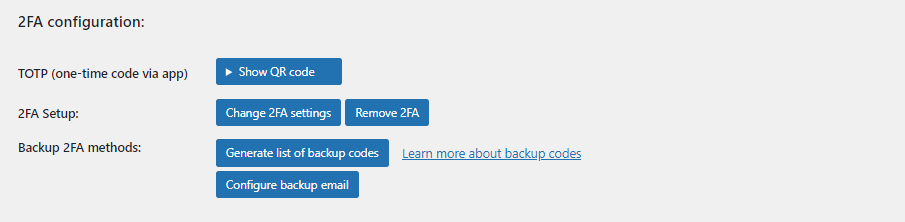
Once you have logged in to your WordPress account, navigate to your WordPress account page by clicking on your username in the top-right corner of the page. Next, scroll down until you reach the 2FA configuration section.
Generating additional backup codes
WP 2FA generates ten backup codes at a time. Using WP 2FA, you can generate a new set of backup codes at any point – ensuring you never run out of codes. Generating new backup codes does not affect your existing backup codes – any unused codes remain valid. As such, you can ensure you never run out of valid codes to use in an emergency.
To generate new codes:
- Navigate to your WordPress user profile page by clicking on your username in the top-right corner of the page
- Scroll down until you reach the 2FA configuration
- Click on Generate list of backup codes
Here you can also see how many unused backup codes you still have a handy feature for ensuring you never lose access to your WordPress account.
Backup codes – a friend in need is a friend indeed
Two-factor authentication is a great and easy way to boost the security of your WordPress website. With backup codes, you can ensure users will still be able to log in should their primary method become unavailable, whether they’re using an authenticator app, email, or any of the other available methods.
Since backup codes work independently of the primary 2FA method, they are as reliable as can be. Setting them up takes but a few minutes of your time and will help you put your mind at rest so that users can still log in without needing helpdesk support.